
The Osborne 1
By Mark Dahmke
This review appeared in the June, 1982 issue of BYTE Magazine.
The Osborne 1 is Adam Osborne's solution to the problem of incompatibility among personal computers. Designed to use industry-standard software, it combines the best of several designs while compromising in only a few areas, such as color and graphics.
The Osborne 1 can best be classified as a business system because it was designed to run a word processor and have the standard printer and modem interfaces that would be most useful to a business person. If you are looking for a computer that you can play games on, the Osborne 1 is not for you. If you need a solid, well-supported, well-documented business system at a reasonable price, you should give it a great deal of consideration.
You really do get a lot for your money when you buy an Osborne 1. Just out of curiosity, I added up the manufacturers' suggested retail prices of all the software included With the system. The total came to about $1530 (allowing for some variation in retail prices). If we subtract this amount from the retail price of the Osborne 1, the computer hardware itself would cost only $265 —not bad for a Z80 with 64K bytes of memory, two 5 1/4-inch disk drives, printer and modem ports, and a built-in 5-inch video display. Of course the software is being distributed for much less than normal retail prices, but in a way you are getting a software package with a computer thrown in for (almost) free.
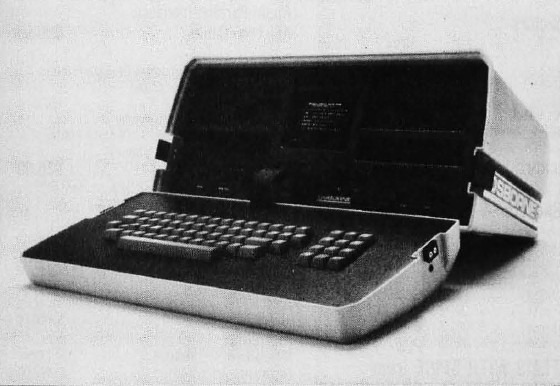
Photo 1: The Osborne 1 personal computer
Hardware
The Osborne 1 is approximately 9 inches high, 20.5 inches wide, and 13 inches deep. The case is weather-proof when closed and can fit under an airline seat. The power cord can be stored in the case with a plastic panel with velcro strips, which also covers the power switch and the red circuit breaker. The unit operates at 120 volts (V) AC and 50 or 60 Hz (three-wire grounded plug) and draws about 37 watts (W). It can be set to operate at 230 V AC by changing an internal jumper. The unit is convection cooled, so there is no built-in fan.
A 69-key detachable keyboard with 12-key numeric keypad (all with sloping key tops) is standard. The software supports full key-rollover operation. Two 5 1/4-inch floppy-disk drives mounted on either side of the display screen each provide 102,400 bytes of secondary storage. The processor board uses the Z80A microprocessor operating at 4 MHz. Main memory consists of 60K bytes of user-programmable memory and 4K bytes of ROM (read-only memory), which are bank switched. Bank switching gives the maximum use of the address space to the user by allowing physically separate memory areas to occupy the same logical address space. Memory-access time is 250 nanoseconds.
A recent ad for the Osborne 1 shows a man carrying a briefcase and another carrying an Osborne 1. While I can see many reasons for carrying along a computer in my work, I doubt I would carry an Osborne 1 in the same way I would carry a briefcase. First, the Osborne 1 weighs about 24 pounds, which would tire out all but the most athletic of travelers. Second, though the Osborne 1 was designed to fit under an airline seat, I don't think I would want to put one there. In fact, some of the commuter flights I have taken won't allow anything that size to be carried on, and the thought of checking my computer as baggage makes me a bit nervous. Remember, inside that rugged-looking package is a small video monitor and two disk drives, all of which are vulnerable to sudden shocks. Cathode ray tubes have been known to implode from less stress than a two-foot drop onto concrete. Also, disk drives can be thrown out of alignment fairly easily. The Osborne 1 would be portable enough for many people, provided sufficient care is taken to avoid bouncing it around.
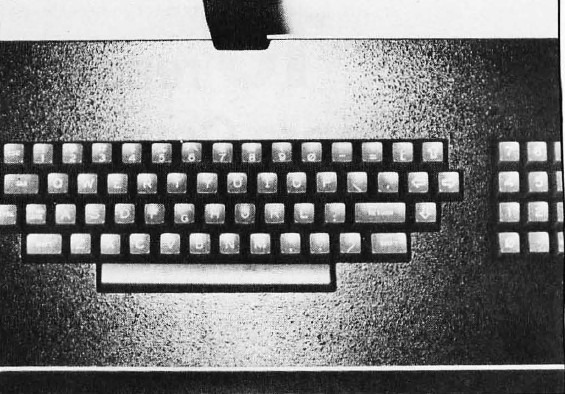
Photo 2: The keyboard of the Osborne 1. The four arrow keys on the upper right next to the Return key can be configured for use with CP/M or Wordstar, but not both. Numerica keypad is at the far right.
Photo 1: The Osborne 1 personal computer
The Osborne 1 comes with two single-density disk drives, each capable of storing 102,400 bytes or characters of information on a single 5 1/4-inch floppy disk. A double-density option is also available, allowing the Osborne 1 to store as much as 204,800 bytes or characters per disk. According to the user's manual, data is physically stored on each disk as 40 tracks, each track divided into 10 sectors (soft-sectored). Each sector contains 256 bytes of data. This works out to 100K bytes, which matches the 102,400-bytes-per-disk figure mentioned in the manual. Tracks 0, 1, and 2 contain the CP/M 2.2 operating system. On track 2, sectors 3 through 6 hold the customized BIOS (basic input/output system), sectors 7 and 8 hold the initial screen display (the Osborne logo), and sector 9 holds information such as the serial number and some system test procedures. Thus, about 92.5K bytes remain for user storage. The video display of the Osborne 1 has some unique features and some problems. The "real" display window provides 32 lines of 128 characters per line. To accommodate the small video monitor (5 inches diagonally), however, only 24 lines of 52 characters each can be seen at any one time. The user may scroll the screen both horizontally and vertically to look at any 24-line by 52-character portion of the total display window. Scrolling is accomplished by holding down the control key while simultaneously using one of the four arrow keys. The display doesn't jump as one would expect but instead scrolls smoothly causing no eyestrain.
Surprisingly, the size of the display doesn't cause eyestrain either. I asked a friend with bifocals to try it and he claimed he wasn't bothered by staring at the small screen. This is interesting because if you stand 3 feet away from the screen, it is almost unreadable. But if you sit at the keyboard with the screen about 15 inches away, it is quite clear.
Characters on the display screen are formed in an 8 by 10 dot matrix. The character generator holds 128 character shapes, and a standard 96-character ASCII (American Standard Code for Information Interchange) set is provided, plus an additional 32-character graphics set. Unlike many personal computers, the character set cannot be changed by the user. The display does allow for underlining and half-intensity display of individual characters on the screen.
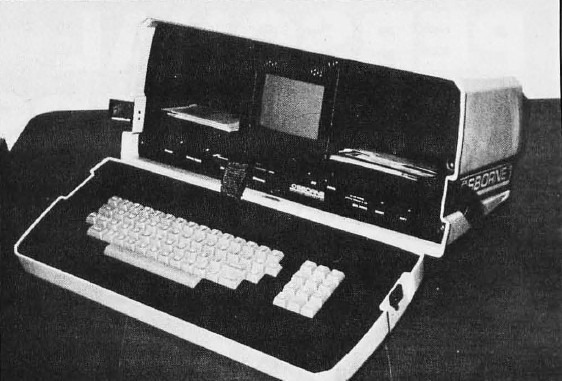
Photo 3: Front view of the Osborne 1. The 5-inch diagonal video display is seen at center, and the 5 1/4-inch disk drives are on either side of the display. Storage space for disks is provided below the two disk drives. RS-232C, IEEE-488, and modem cable connectors are in the lower left. An insulated ribbon cable connects the keyboard to the rest of the computer just below the video display. Brightness and contrast controls and external video connectors are found up front. The reset switch is also up front but is not likely to be pressed accidentally because of its location. The last connector is for the external battery pack.
The keyboard of the Osborne 1 is detachable. In fact, there is no way it can be attached, except when the unit is closed up. After it is unlatched from the computer cabinet, all that connects it to the computer is a flat, insulated ribbon cable. Although the connector looks like it is ready to break off, it is quite solid.
Keyboard decoding is done on the main circuit card, so no complex circuitry is present in the keyboard housing itself. The hardware supports full key-rollover operation, meaning that no matter how fast you type, the computer can keep up with you. The only characters missing from the keyboard are { } ~ ` and DEL. However, these can be entered by depressing the control key simultaneously with . , / = and ?, respectively. These keys are not that important except, perhaps, for programming in certain high-level languages such as Pascal. Also, the backspace function is provided by the Left Arrow key. Since the arrow keys (cursor controls) cannot be set up for use in CP/M and Wordstar simultaneously, the user must choose one or the other configuration. If Osborne had simply defined the arrow keys to work in Wordstar (where they are much more useful), then a separate backspace key could have been assigned for CP/M. Considering how many products have been ruined by poor keyboard layouts, I find it difficult to understand why a few keys were left off an otherwise excellent design.
The Osborne 1 comes complete with an RS-232C connector and a separate modem connector. You need a separate interface box to use a standard modem when it is connected to the modem connector. It is important to note, however, that if you want to use a modem by itself, you can connect it directly to the RS-232C port and eliminate the need for the interface box. Therefore, the only limitation is that you can't use a modem and a serial printer at the same time without the interface box. Apparently, a single serial interface is used to talk to both the RS-232C port and the modem.
The IEEE-488 interface has two uses. First, as the name implies, you can use it as a full IEEE-488 port With handshaking, thus allowing the use of several interesting peripherals, such as a hard disk. It may also be used as a Centronics-compatible printer port, if you purchase a cable with a Centronics-type connector at one end.
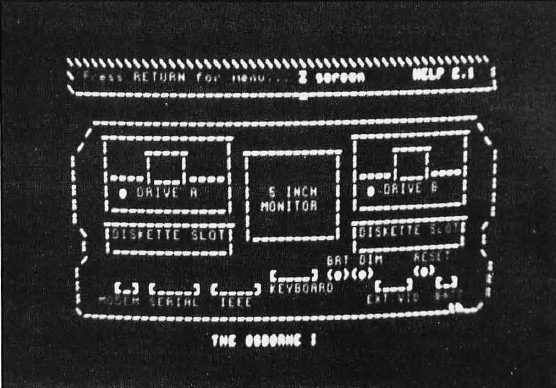
Photo 4: The Osborne 1 video display is arranged as 32 lines of 128 characters per line, but only 24 lines of 52 characters can actually be seen at one time with the built-in display. The four arrow keys (when used in conjunction with the control key) can be used to scroll horizontally and vertically.
Software
The Osborne 1 comes eith an impressive array of software. Included as standard are the CP/M operating system, Wordstar (with Mailmerge), Supercalc, CP/M 2.2, CBASIC, and MBASIC. Also included are several useful utility programs. Wordstar, the popular word processor, is fully imple- mented on the Osborne. The only annoying feature is the scrolling of the 52-character display. If your text line becomes longer than 52 characters, the screen has to scroll horizontally. Also, you must run Setup (a utility program) and choose whether the four arrow keys on the keyboard are to work in Wordstar or in CP/M. Otherwise, Wordstar operates just as it would on any other computer. Supercalc may be the best buy on the system. Similar to Visicalc, Supercalc lets you set up electronic spread sheets for budgeting, balance sheets, or just about any columnar information. Supercalc may be the best buy on the system. CBASIC and MBASIC are provided so you can test BASIC programs with interpretive MBASIC, then compile them with CBASIC to run faster. Both are fairly standard versions of BASIC.
Utilities
Utilities provide the user with the basic tools necessary to manipulate the computer system and data. I found the utility called Setup to be the most useful. It allows you to change certain characteristics of the system. For example, Osborne included a number of standard printer protocols in the BIOS. These allow the computer to communicate successfully with a variety of printers. You can choose between standard serial (no protocol), Qume (ETX, ACK), Diablo (XON, XOFF), Centronics, or PET IEEE-488. You can also change the serial-port data rate to 300 bits per second (1200 bps is the default). You may choose a different screen size - 52 for a fixed screen, 128 for scrolling - or you can enter a width of your own choice, such as 80. The automatic horizontal scrolling mode can be enabled or disabled, and the four arrow keys can be set to work either in Wordstar or in CP/M.
The keys on the numeric keypad can be programmed as function keys if you don't plan to use them to do numeric entry. The 0 through 9 keys can be redefined using Setup to any sequence of characters. For example, you could define the '0" key to be "XDIR", which would enter the extended directory display command (in CP/M). When you make system changes with Setup, typing "X" when asked for the destination disk will return you to the CP/M level without saving the changes on disk. They will remain in effect only until you reset the system or power down. However, system changes can be stored permanently on one or more disks so the options are active the next time you boot the system with that disk. FMT is a utility that will format a disk for use with the Osborne 1. Because the computer cannot use soft-sectored disks before they are formatted for a particular track/sector layout, you must run this program on all new disks. The Copy utility allows you to make a complete copy of a disk for backup purposes, or just the data or user portion, or the system or CP/M portion. A separate program called Backup will direct you through a backup procedure to save your files.
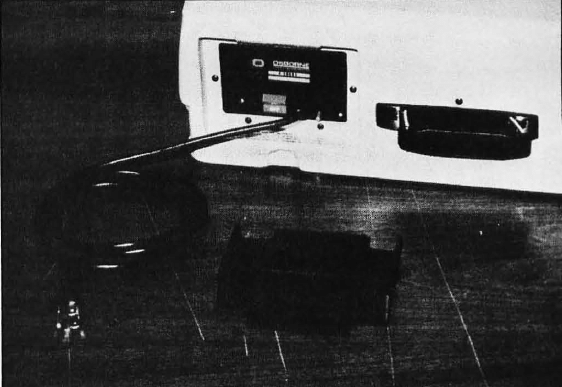
Photo 5: The power cordi on/off switch, and circuit breaker are located on the back of the unit covered by a plastic panel with velcro strips.
Documentation
Many popular personal computers have such poor documentation, I am amazed the average user can make any sense of it. The Osborne 1 comes with one of the most impressive user's manuals I have seen. No doubt Adam's publishing background helped in this area. The manual begins by showing how to set up the computer and gives you a tour of all its connectors, the video disoplay, the keyboard, and the disk drives. It then explains how to handle floppy disks and how to 'boot" the CP/M operating system. For many users, the lack of simple start-up instructions can be the first in a long series of frustrations. When the Osborne 1 is first turned on, the display tells you to insert a disk in drive A and press the Carriage Return key on the keyboard. Most other personal computer manufacturers assume the user understands this. After CP/M is loaded from disk into memory, the display lists a menu of options such as "Just starting" and "Self portrait." Each of these menu entries gives the user a quick explanation of the hardware and software of the computer and how to use it. Even without the bound instruction manual, most users would be able to run the system after a few hours of experimenting. Another advantage to the Osborne 1 is that all disks that come with the system have a copy of CP/M on them. Each disk is a "master." You can insert any of the disks into drive A, and the system will boot properly. While this doesn't mean that you won't have to make backups, it does mean that some of the frustration is eliminated when you first use the system. Most companies give you just one copy of the disk operating system, expecting that you will make backup copies yourself. Of the disks provided with the Osborne 1, one is a CP/M system disk and another is a CP/M utilities disk. Also included are ready-to-go disks with Wordstar, Supercalc, MBASIC, and CBASIC on them.
Conclusions
The Osborne 1 definitely has a lot going for it. It has the best features of all the business computers, plus enough software to satisfy all but the most demanding of requirements.
It is well designed with a rugged all-in-one enclosure, making it easy to move and set up.
The major complaints have been the stark "military" look and the small video display (52 characters wide). Also, 5 1/4-inch disks hold only 100K bytes of data, just under half that of a single-density 8-inch disk.
Apart from these limitations, the Osborne 1 comes closer to being the ideal business system for low-end applications.
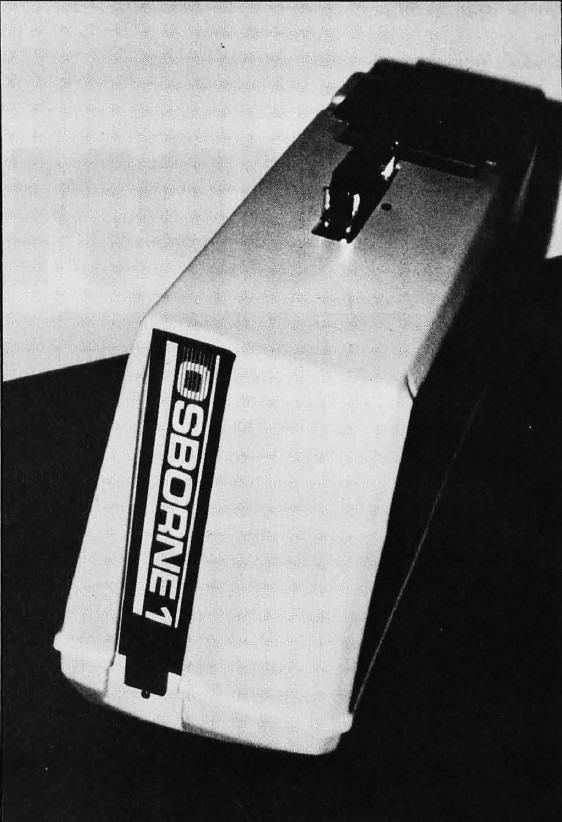
Photo 6: The Osborne 1 when closed up. The handle makes it easy to carry, but the sloping keyboard (which becomes the bot- tom) makes it sit at an angle. lt has the feel of a lightweight sewing machine.
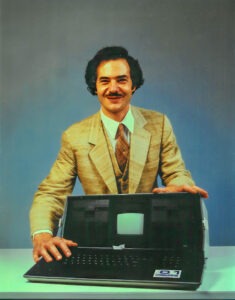
This is the press release photo provided by Osborne Computers.
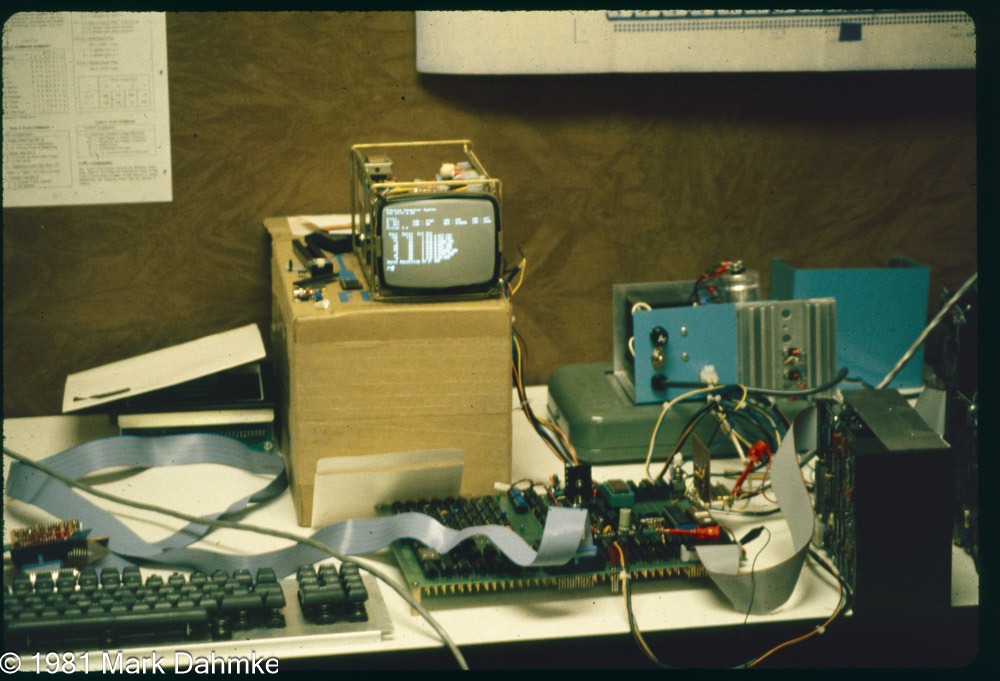
This is the only known photo of a prototype of the Osborne 1. I took this photo at the Osborne development lab on Feb 25, 1981 and recently donated it and a few other color slides of the prototype to the Computer History Museum.
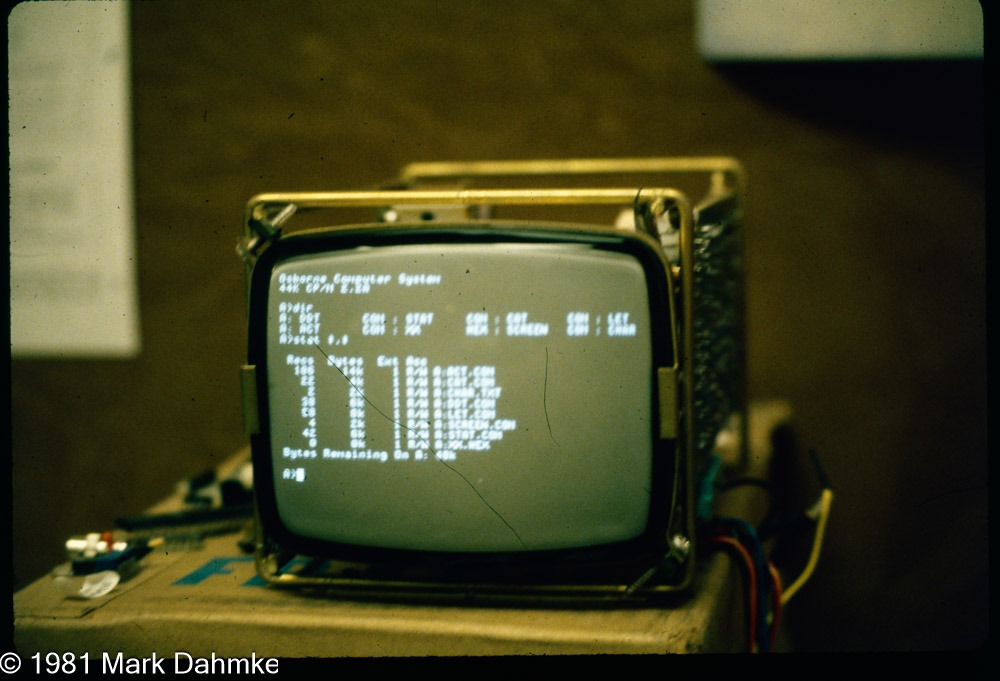
A close-up of the 5" black and white monitor used in the Osborne 1.